
Windows Core Installation
Getting started
Before you get scared by this long guide, we assure you the procedure is quite simple.
Most of the following steps are to be performed only the first time you install TrinityCore and only the updating procedures will need to be run from time to time.
Required Software
Pulling & Compiling the Source
Pulling the Source
- Create a directory in which Core files will be pulled (for example: C:\TrinityCore).
- Right-click on the directory and click on Git Extensions -> Clone (on recent versions: GitExt Clone...)
- Fill in the data as follow:
| 3.3.5 (WotLK 3.3.5a Client) This will clone 3.3.5 branch, this is the RECOMMENDED branch for starters and people wanting playable content. 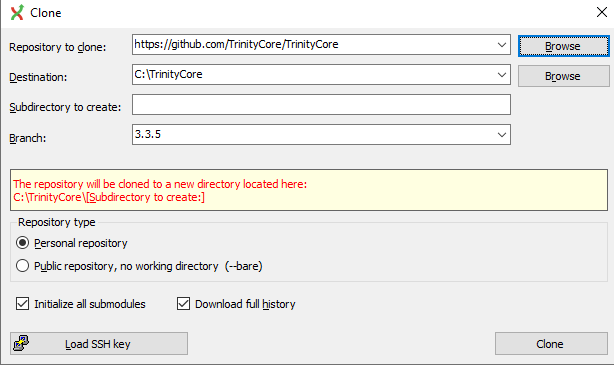 |
|---|
| master (currently the Midnight client) This will clone master branch, note that this is NOT the recommended branch for starters, this branch doesn't ship most of content after 3.3.5a. 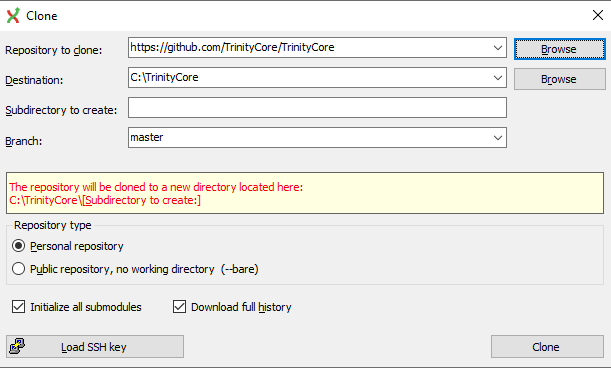 |
Click Clone. Within a few minutes all of the TrinityCore source files will be pulled into the directory C:\TrinityCore.
Note: If you don't specify a branch, git will pull master by default!
Configuring and generating Visual C++ solutions with CMake
Before you begin, create an empty directory called Build. In this example, we will use C:\Build.
Note: The following images serve as an example and partly show outdated software versions:
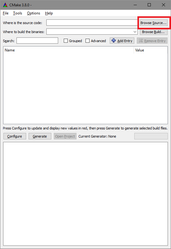 Click Browse Source... -> Select the source directory (C:\TrinityCore) | 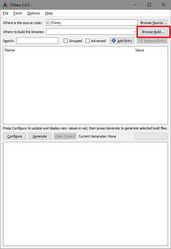 2. Click Browse Build... -> Select the build directory (C:\Build) | 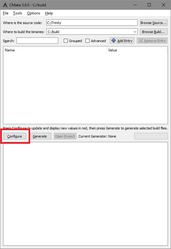 3. Click Configure |
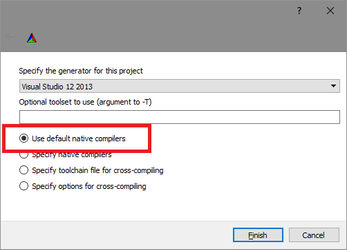 4. Make sure that Use default native compilers is checked (should be checked by default). | 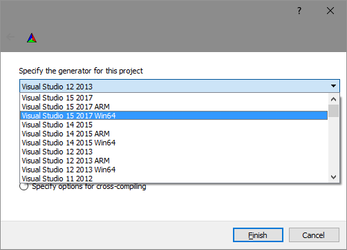 5. In the drop-down menu, choose the version of the compiler you downloaded in the Software Required section. Be sure to choose Win64 version if you work on 64-bits compilation | 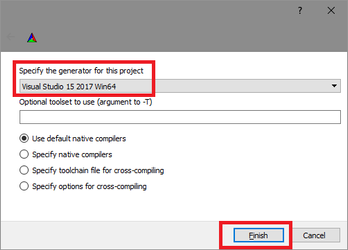 6. Click Finish. |
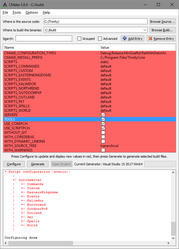 7. Make sure Tools is checked already. This will compile the map extractors needed later in the setup. (in master (up to 6.2.4 tag) branch, this will also generate connection_patcher.exe) | 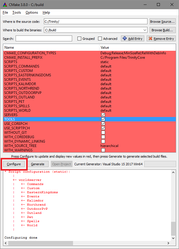 8. Click Configure again. As long as you have error(s) typed in red in the log window, you will have to check your parameters and click again on it. | 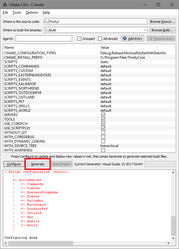 9. Click Generate. This will install the selected build files into your C:\Build folder. |
Some errors fixes
- If MySQL is not found by CMake it is required to set MYSQL_INCLUDE_DIR = C:/Program Files/MySQL/MySQL Server 8.X.X**/include** and MYSQL_LIBRARY= C:/Program Files/MySQL/MySQL Server 8.X.X/lib/libmysql.lib.
Where 8.X.X is the mysql version you have selected/installed.- If you get linker errors (e.g "error LNK2019: unresolved external symbol mysql_server_init"), make sure MYSQL_LIBRARY is set to the libmysql.lib that matches your compile mode (x64).
(If you do not see the MYSQL fields in CMake, tick the Advanced box).- If you get an error that CMake could NOT find OpenSSL:
- Check the Advanced checkbox
- Find the two OPENSSL entries in the list and point to the correct directories:
OPENSSL_ROOT_DIR is the installation path (by default, C:/Program Files/OpenSSL-Win64)
OPENSSL_INCLUDE_DIR is the "include" folder in installation path (by default, C:/Program Files/OpenSSL-Win64/include)
Compiling the Source
In Visual Studio, browse into your C:\Build folder and open TrinityCore.sln with Visual Studio Community.
- You can use the button [Open Project] in CMake window to open the solution directly with VS.
On the menu at the top, click Build and select Configuration Manager.
Set Active Solution Configuration to RelWithDebInfo
Right-click ALL_BUILD and select Build (or go to the Build menu and click Rebuild Solution (Ctrl+Alt+F7)).
(if your GUI does not show Solution Explorer, click the Build menu and select Rebuild Solution).
- Compilation time differs from machine to machine, you can expect it to take anywhere between 5 and 30 minutes.
- If you are asked to "Reload build files" during the compile, do so.
- When the build is complete, you will find a message similar to the one below (the numbers may be different).
========== Build: 22 succeeded, 0 failed, 0 up-to-date, 1 skipped ==========
You will find your freshly compiled binaries in the C:\Build\bin\RelWithDebInfo or C:\Build\bin\Debug folder. These are all used to run your server at the end of this instruction.
You will need the following files in order for the core to function properly:
| 3.3.5a authserver.exe authserver.pdb authserver.conf.dist worldserver.exe worldserver.pdb worldserver.conf.dist libmysql.dll legacy.dll libcrypto-3-x64.dll libssl-3-x64.dll | master (12.x) & cata_classic bnetserver.exe bnetserver.pdb bnetserver.conf.dist bnetserver.cert.perm bnetserver.key.perm worldserver.exe worldserver.pdb worldserver.conf.dist libmysql.dll legacy.dll libcrypto-3-x64.dll libssl-3-x64.dll openssl_ed25519.dll |
|---|
There are four DLL files that need to be manually added to this folder, and you need to copy them over from the following installation/bin directories:
libmysql.dll → C:\Program Files\MySQL\MySQL Server 8.x.x\lib legacy.dll → C:\Program Files\OpenSSL-Win64\bin libssl-3-x64.dll → C:\Program Files\OpenSSL-Win64\bin libcrypto-3-x64.dll → C:\Program Files\OpenSSL-Win64\bin
About compilation log and report
pdb files only exist if you compile on Debug or RelWithDebInfo modes, it's not mandatory but it's recommended to compile core on at least RelWithDebInfo mode to get proper crashlogs. If you compile on Release mode the pdb files aren't needed.
To report crash logs it's MANDATORY to compile on Debug or RelWithDebInfo mode.
Please remember to rename the worldserver.conf.dist and authserver.conf.dist / bnetserver.conf.dist files to worldserver.conf and authserver.conf / bnetserver.conf respectively, unless you want to keep the configuration files of a previously compiled version of the core.
Keeping the Source Up-to-Date
TrinityCore Developers are always at work fixing and adding new features to the core. You can always check them here, or by viewing them from within Git Extensions.
Open your TrinityCore repository in GitExtensions.
- Click on the blue arrow
- In the new window, click Pull.
This will sync your local repo to the latest commits from the branch you have setup as default.
3. Now you will need to re-run CMake Configure & Generate to update your solution (.SLN) files.
4. Compile downloaded source.
5. Run worldserver, it will apply all new sql files (can see that in console).
Profit!!
Bugs and errors reporting
Before reporting bugs please update your core, since we commit a lot of things monthly. Even one week core is old and your bug can be fixed on next or latest updated revision.
Also keep in mind that this guide is meant to satisfy a maximum of people in compiling TrinityCore under Windows environment in a general and easy way. You may encounter variations
depending on many parameters.
Help
If you still have any problem, check:
- Updating or starting with TrinityCore issues
- Trouble with your TrinityCore Install / Readme 1st / FAQs
- Or just start a new topic in the forums